
Keys & tokens
Use a project key to send telemetry from your app or gateway. Use a personal MCP token or OAuth sign-in to let an AI agent work with telemetry through your WildEdge account.
Explore project Settings in the demo · Sign in to WildEdge
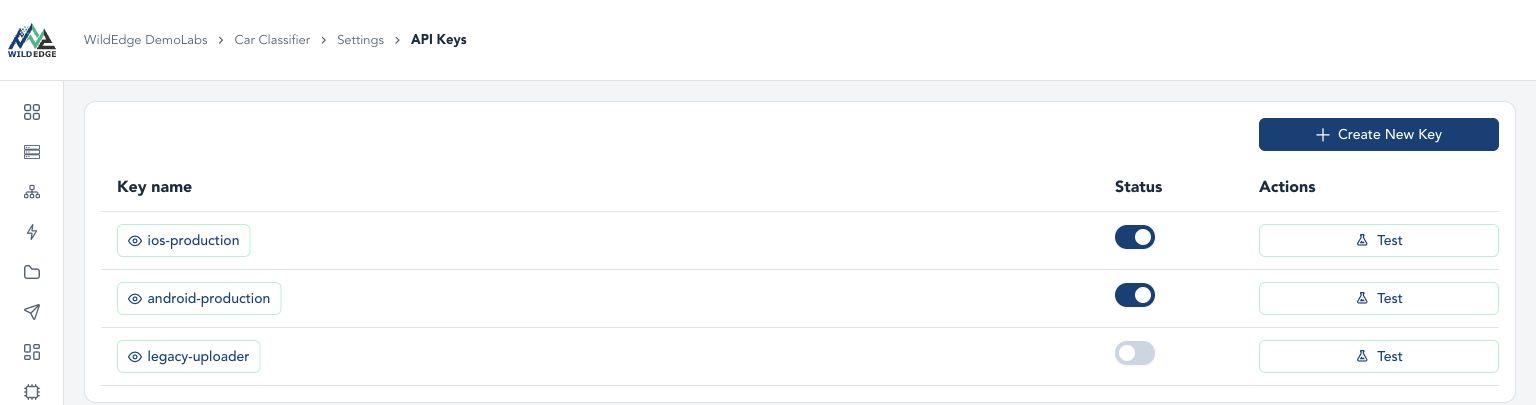 Open full-size screenshot
Create and test a project key
- Open the project and go to Settings → Project Keys.
- Select Create New Key, name it after the integration, and select Create Key.
- Select the key name, then Reveal DSN and Copy DSN. Follow the SDK setup or gateway setup instructions to supply the DSN or its secret.
- Send an event from the integration and verify it in Events. To check ingestion from WildEdge first, use Test on the key’s row to send a test payload.
The DSN contains the project’s ingestion secret. Keep it in your secret manager or deployment configuration. Anyone with the secret can send events to that project.
Rotate or disable a project key
For a planned rotation, create a replacement, update each sender, and confirm new events are arriving. Then turn off the old key using its Status switch. If a key is exposed, disable it immediately and update affected senders with a replacement.
Manage agent access
Personal MCP tokens live under MCP access tokens in your profile. Use Read for investigation and Read + Write when the agent needs to make changes that your account can perform. From the token list you can change its permissions or delete it to disconnect clients using it.
For token setup or web sign-in, see Connect your AI agent.