
Team & permissions
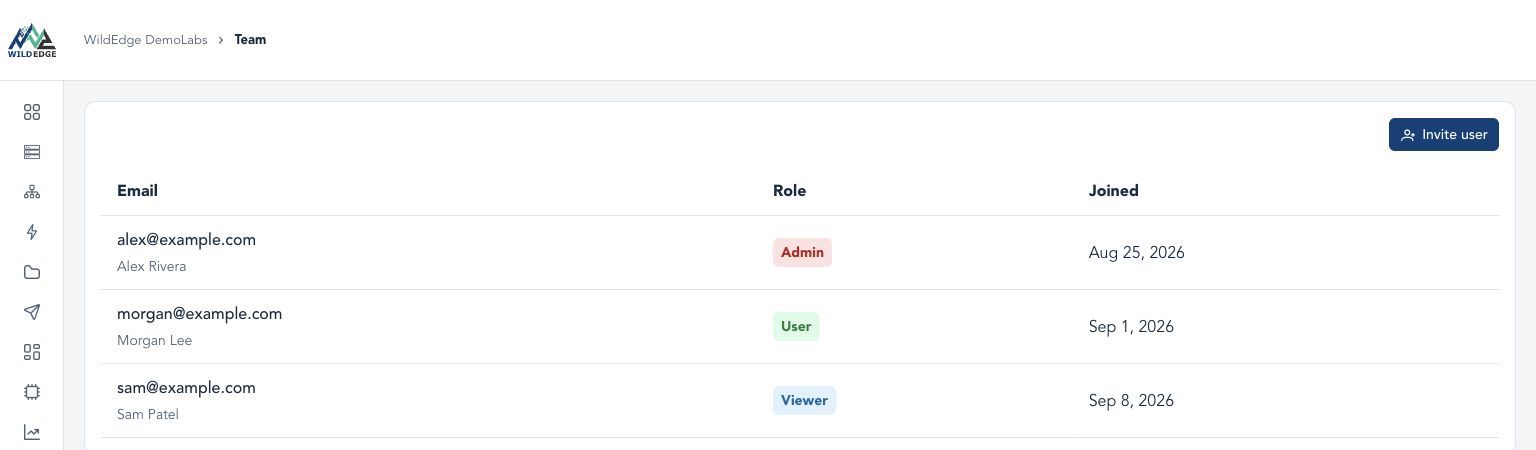
Manage company membership in Team. An Admin can invite teammates, change member roles, and remove members. Roles apply at the company level, so check which company is selected before inviting someone.
Explore Team in the demo · Sign in to WildEdge
 Open full-size screenshot
Invite a teammate
- Open the profile menu and choose Team under your company’s name.
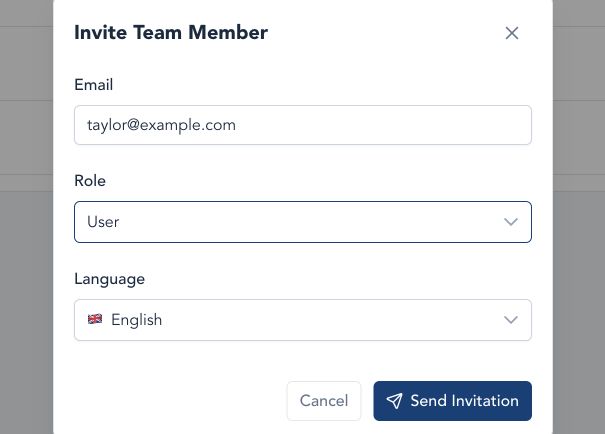
- Select Invite Member, then enter the teammate’s email address.
- Choose Admin, User, or Viewer. Grant Admin when the teammate needs to manage membership or project settings.
- Choose the invitation language and select Send Invitation.
 Open full-size screenshot
Manage invitations and members
- Use Pending Invitations to see who has yet to accept. Select Resend to send another email or Revoke to invalidate the invitation link.
- Once a teammate joins, use the role control on their row to change their role. Use Remove to remove them from the company.
The demo shows the team list. Invitation and membership changes are available in your own company.