
Capture See Demo
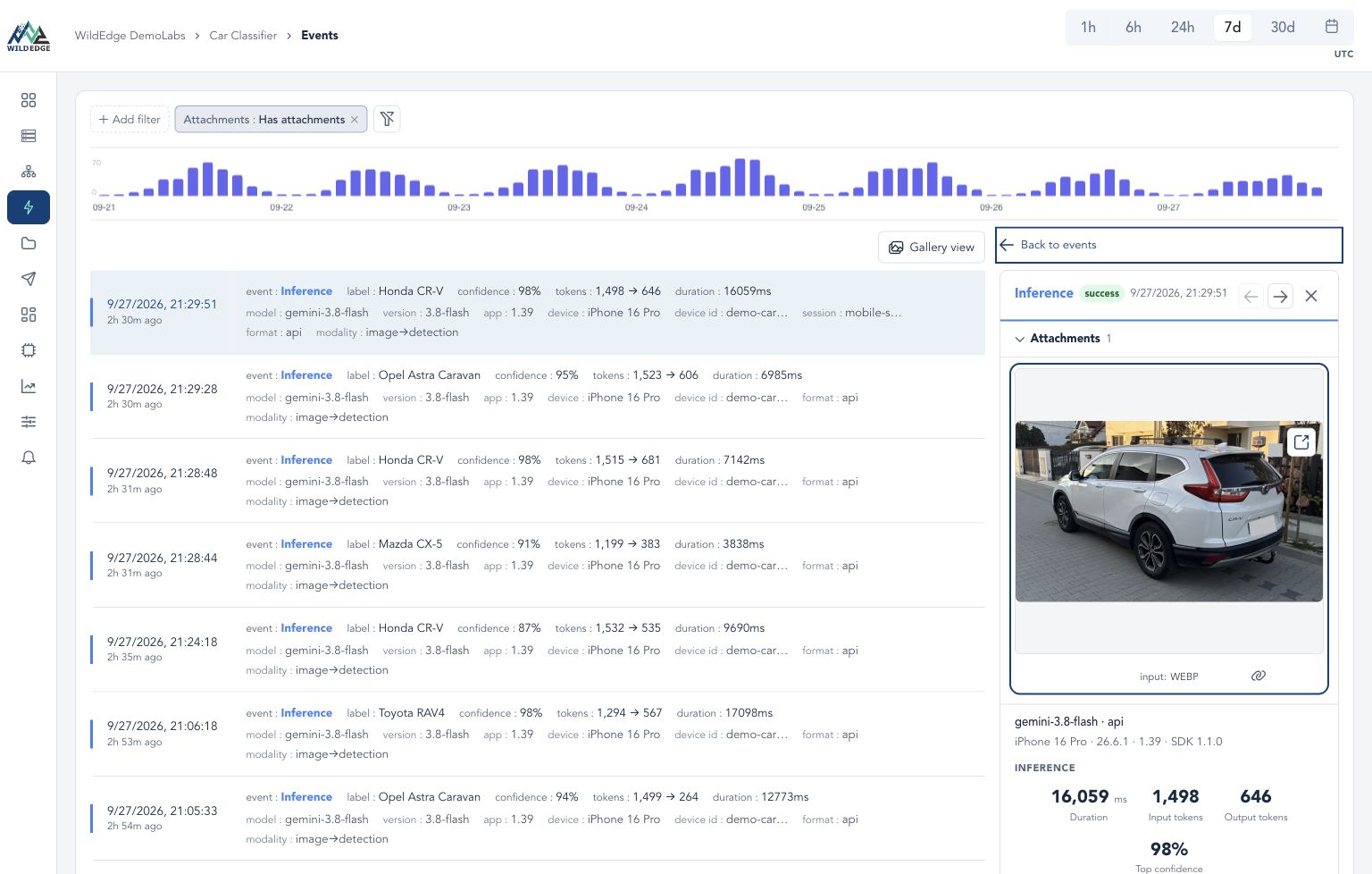
Capture gives you the original input or output attached to an inference event. Open it alongside the model’s prediction to investigate a result or collect an example for a dataset.
 Open full-size screenshot
Find and review a capture
- In Events, select Add filter → Attachments → Has attachments. Set the time range for the examples you want to review.
- Open an event and look under Attachments. Use the preview to compare the captured input with the reported prediction and confidence.
Add captured events to a dataset
You can inspect attachments in the public demo. Use the dataset controls in your own project to save events.
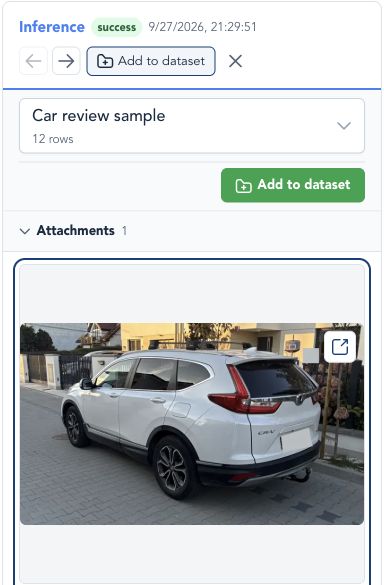
Add one event
In the event details, click Add to dataset. Select an existing dataset, or use New dataset in the picker. Click Add to dataset below the picker to save the selected event.
 Open full-size screenshot
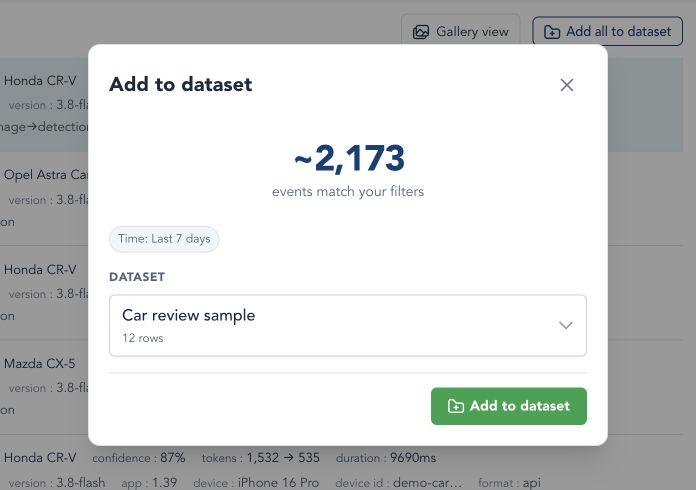
Add all matching events
Set the time range and filters in Events, then click Add all to dataset above the event list. The dialog estimates how many events match, including those beyond the visible rows. If the estimate exceeds the row limit, narrow the time range or refine your filters. Select or create a dataset, then click Add to dataset to start the batch.
 Open full-size screenshot
Capture content in your app
Input and output capture is opt-in. Follow your SDK guide to enable capture or supply attachments. The integration and project configuration determine which files you can upload and the applicable limits. If you only need a short text preview, send an input or output summary.